

Introduce
Accessing BNB Chain is one of the easiest ways to interact with cryptocurrency and DeFi projects. Trust Wallet is a great way to do that, instead of using a desktop browser, and it only takes a few minutes to set up.
The Trust Wallet app is a mobile cryptocurrency wallet that does not require users to register. It is available for iOS, Android, and Google Play users. Once installed, you can easily connect your wallet to DApps, including PancakeSwap, SushiSwap, and Beefy Finance.
Trust Wallet isn't just for BSC either. It also supports Ethereum, POA Network and Callisto blockchains. In this guide, we will use PancakeSwap as an example, but you can refer to other platforms as most of them are similar.
Install and set up Trust Wallet
1. First, go to the Trust Wallet website and click on the link appropriate to the operating system you are using.

2. Install the appropriate app for your specific device. After opening Trust Wallet, continue clicking [Create a new wallet].

3. You will now see a fallback phrase. This phrase acts as a recovery password in case you lose access to your mobile device or wallet. Keep a copy of it in a safe, secret place as this is essential when something goes wrong with your device.

4. Then, click [Continue], you will be asked to repeat your phrase in the correct order. This step is to ensure that you have copied or written down your backup phrase. Once you have entered the words in the correct order, click [Continue].

5. At this point, you have successfully set up your cryptocurrency wallet and you will see an overview in the [Wallet] tab.

Deposit BNB to Trust Wallet
To use DApps on BNB Smart Chain (BSC), you will need some BNB to pay your transaction fees. Every time you deposit tokens with BSC or interact with smart contracts, you will pay gas fees..
1. To use BNB BEP-20 tokens to pay gas fees, your tokens must be sent using the BEP-20 transfer network. If you are withdrawing from Binance, make sure to select the [BEP-20 (BSC)] option on the withdrawal page.
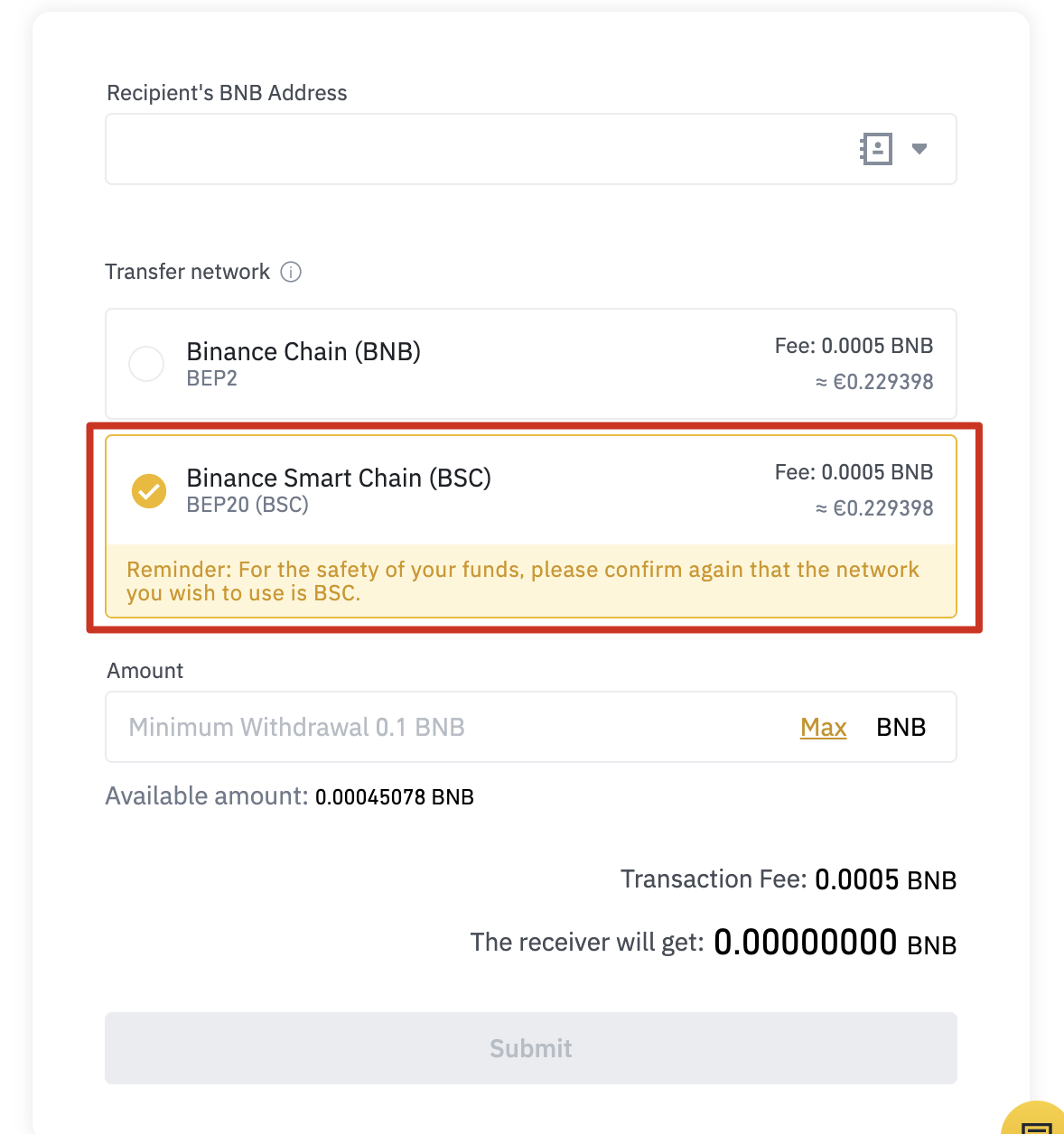
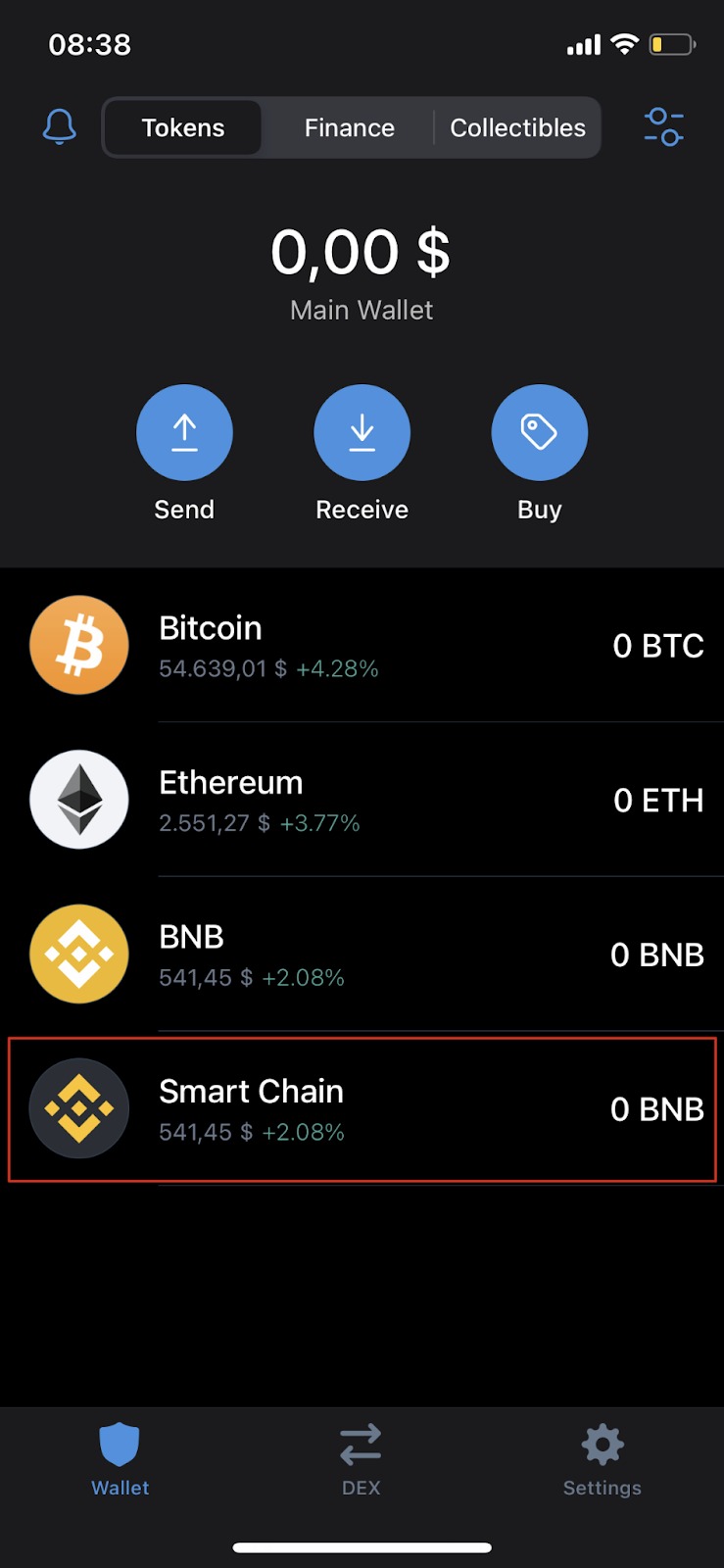
2. To deposit BNB BEP-20, open the [Wallet] tab on Trust Wallet and click [Smart Chain]. Do not click [BNB]. This option is for BNB BEP-2 on Binance Chain and cannot be used to pay trading fees on BSC.
3. Click the [Receive] button to find your deposit address. Then, copy and paste this address into your withdrawal wallet or scan the QR code.

Add new tokens to Trust Wallet's list
After installing Trust Wallet, your default list of tokens and cryptocurrencies is quite sparse. For example, you want to add CAKE to your list of cryptocurrencies in your Trust Wallet.
1. Open the [Wallet] tab and click the icon in the top right corner.

2. Search for the token you want to add to your list and click the toggle, so it turns green. In this example, we are adding CAKE (BEP-20) - the token of PancakeSwap on BNB Smart Chain to the wallet.

3. Done. You will now see CAKE on your [Wallet] tab and the balance if any.

Connect Trust Wallet to PancakeSwap
There are several ways you can connect your wallet to PancakeSwap and other DApps. You can connect through the Trust Wallet browser on mobile or on desktop. Both offer the same functionality, so the choice depends on your preferences.
Connect from the Trust Wallet browser
1. If you are using Trust Wallet's DApp browser, go to the PancakeSwap website and tap the [Connect] button in the top right corner.
2. Select [Trust Wallet] to connect your wallet to PancakeSwap.

3. If you have successfully connected, you will see your wallet ID in the top right corner.

Connect from a desktop browser
1. Visit the PancakeSwap website on desktop and click [Connect] in the top right corner.
2. Click [WalletConnect] to start the connection process. Currently, the [Trust Wallet] button only works when using the Trust Wallet browser.
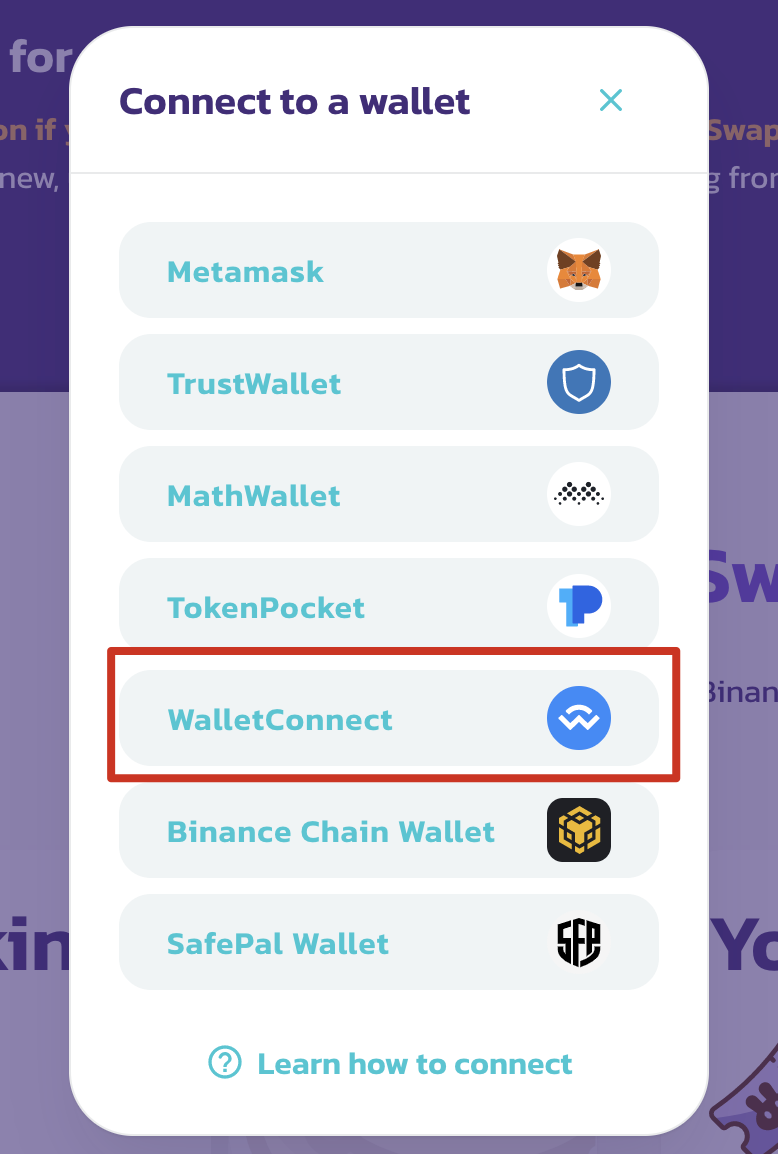
3. A QR code will appear, which can be scanned using the Trust Wallet app. Go to [Settings] on the app tab and click [WalletConnect]. Scan the QR code displayed on PancakeSwap and click [Connect] in Trust Wallet.

4. If you have successfully connected, PancakeSwap will display your wallet ID header in the top right corner.

summary
Trust Wallet is one of the most popular mobile applications in use and has a wide range of interactions with the blockchains and tokens it supports. It is also a gateway to access NFTs and the entire DeFi ecosystem. Therefore, learning how to use Trust Wallet is relatively important. The steps mentioned above can be applied to other DApps. So once you have grasped the above instructions, you can easily get started.